
Getting Started
The GenyServe mobile app is your gateway to managing and exploring real estate properties, requesting services, and connecting with your community. Available on both Android and iOS, the app provides a seamless experience from the moment you open it.
Splash Screen & Onboarding
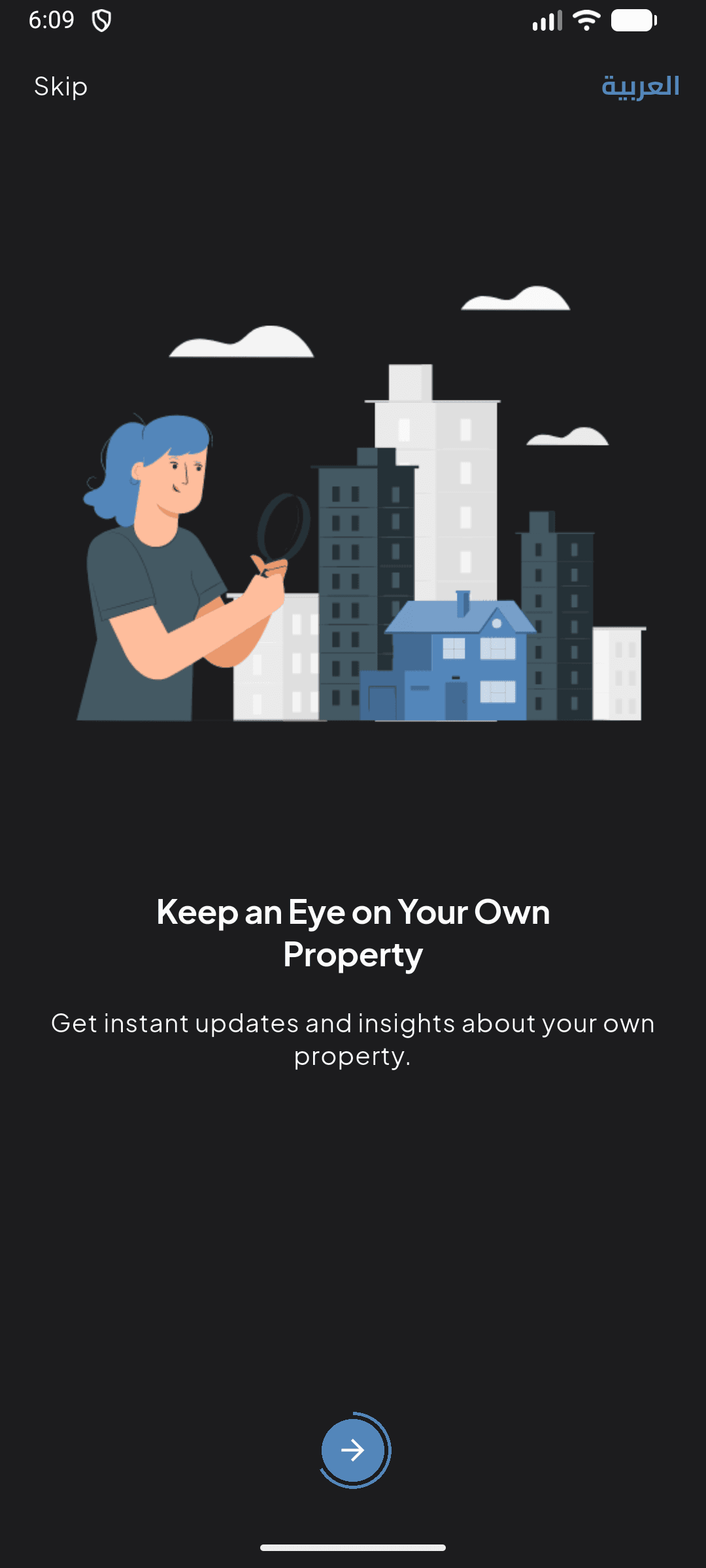
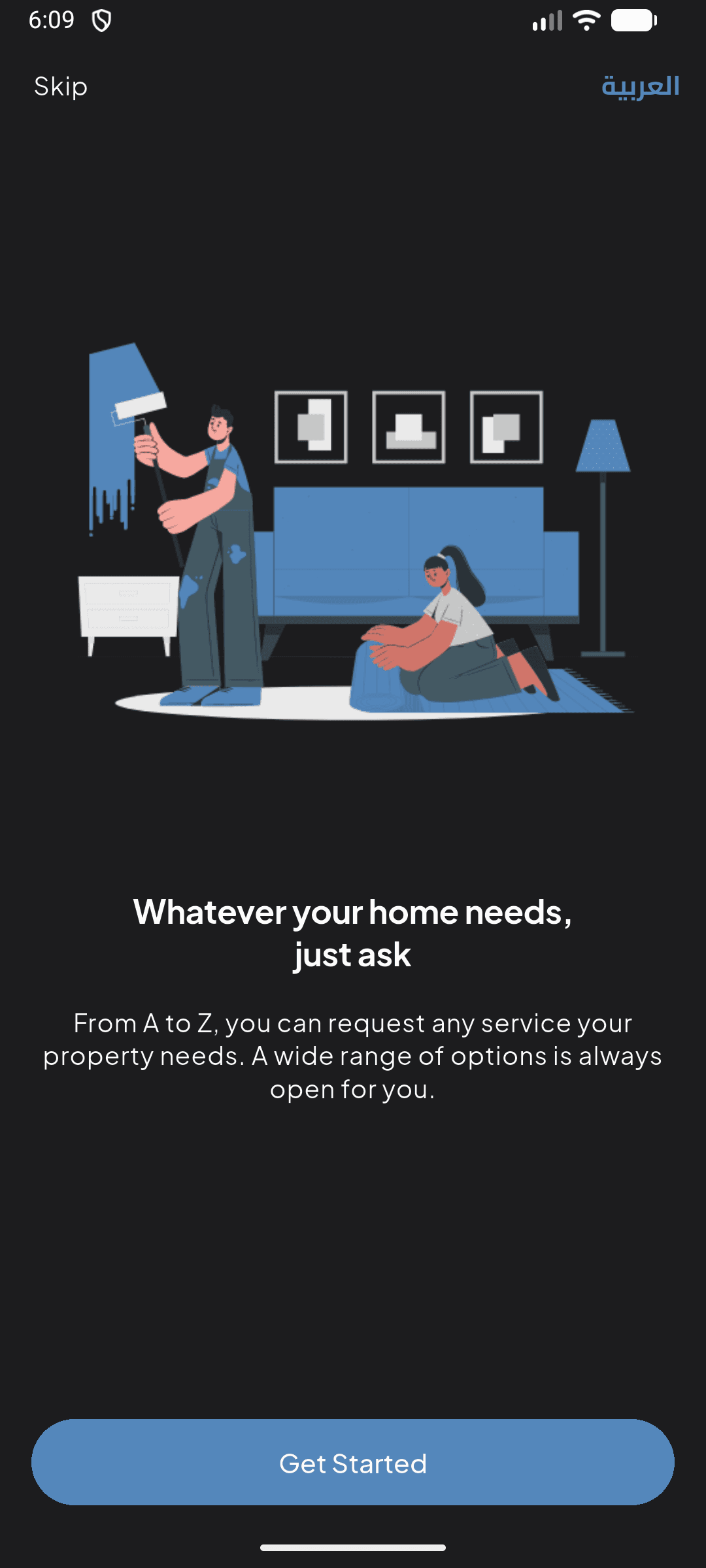
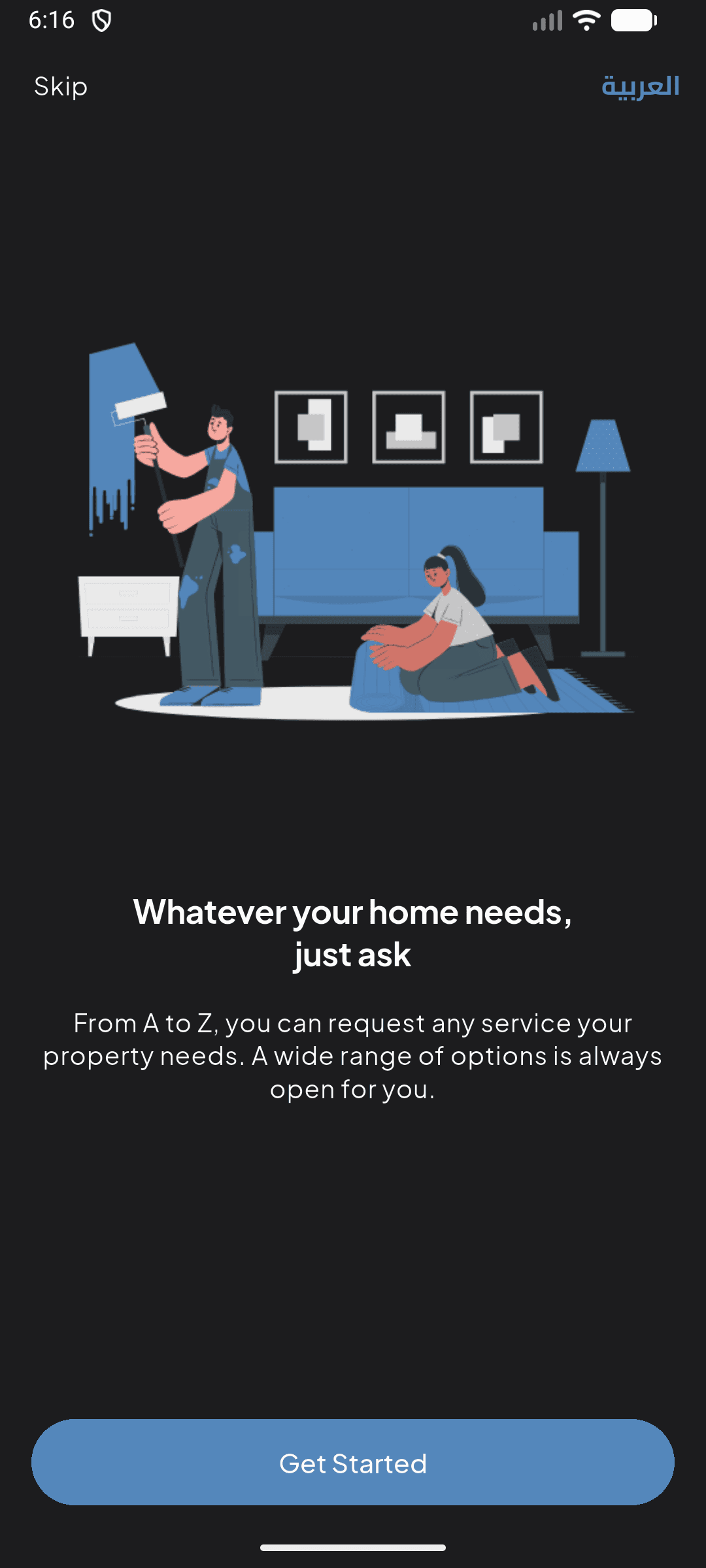
When you first launch the app, you're greeted with the GenyServe splash screen featuring the signature mascot logo. The app then presents a three-step onboarding that highlights the core value propositions.
GenyServe Platform
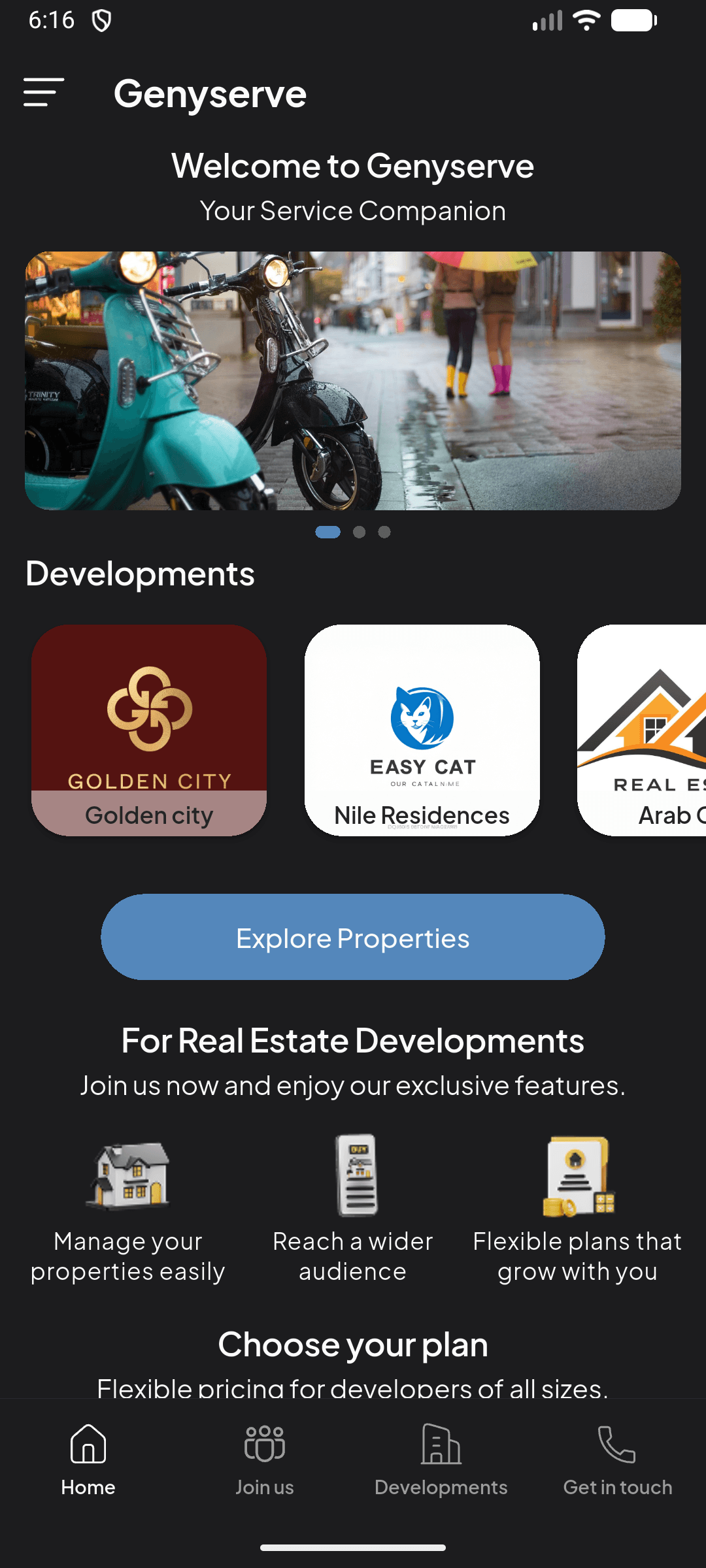
After onboarding, you arrive at the GenyServe platform screen. This is the public-facing landing page featuring real estate developments, subscription plans for developers, and company information.
Entering a Development
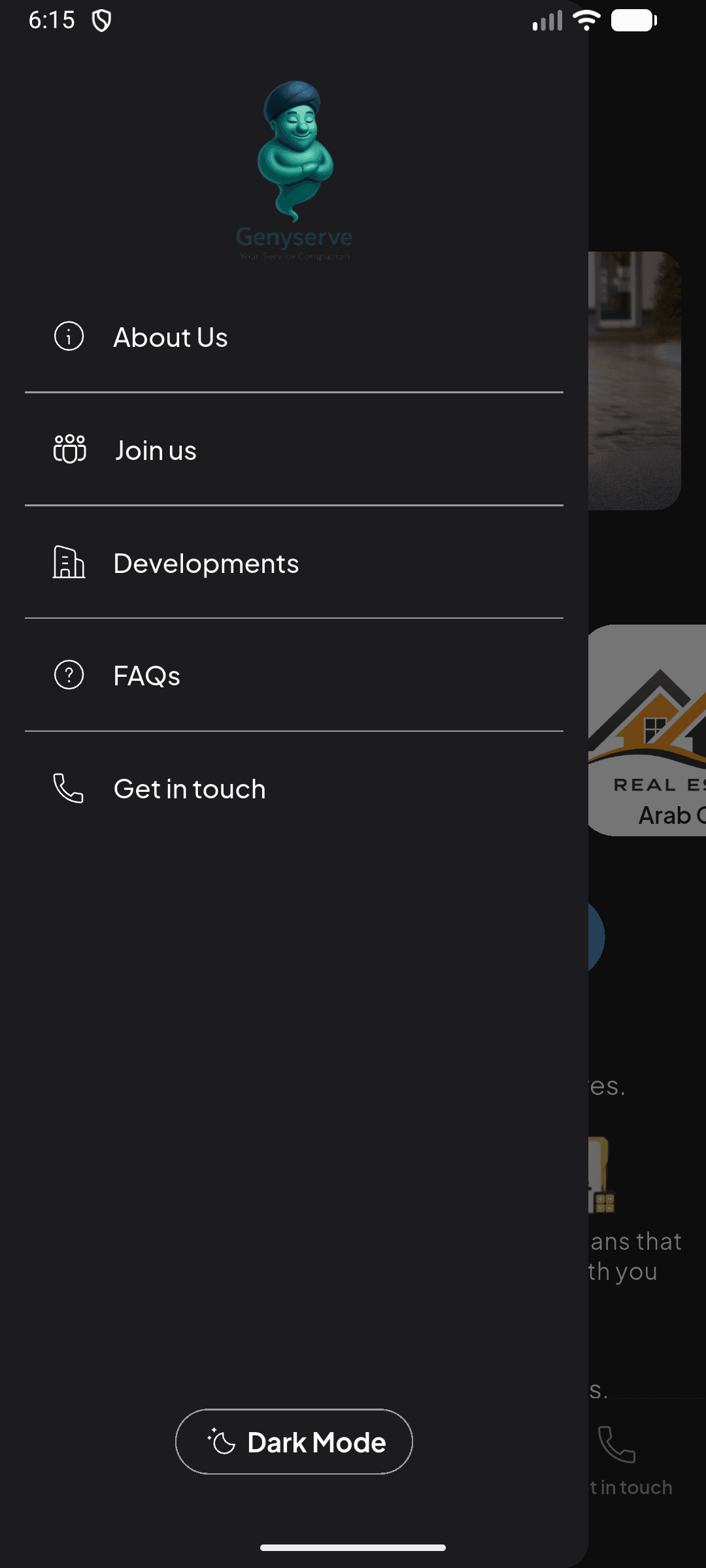
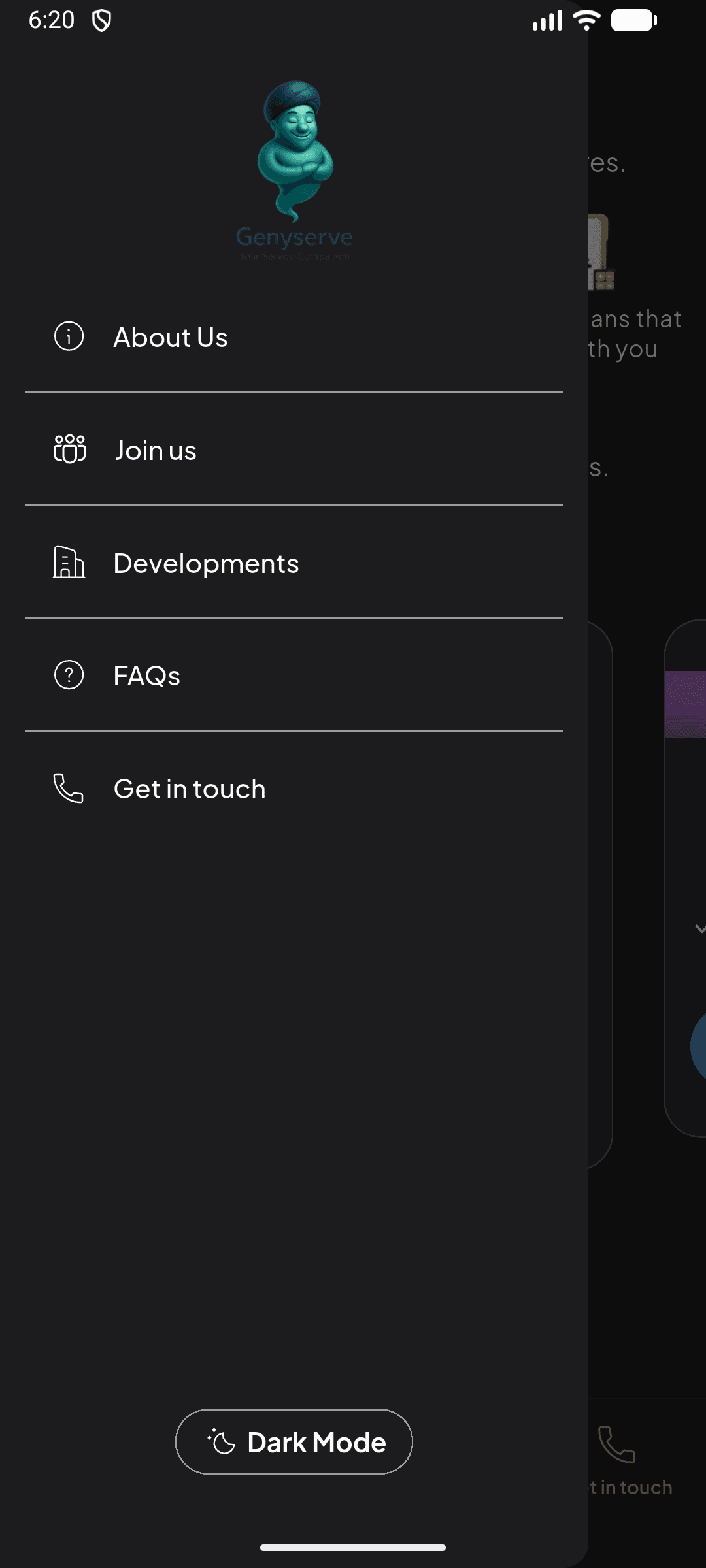
- About Us
- Join Us
- Developments
- FAQs
- Get in Touch
- Dark Mode Toggle
Authentication
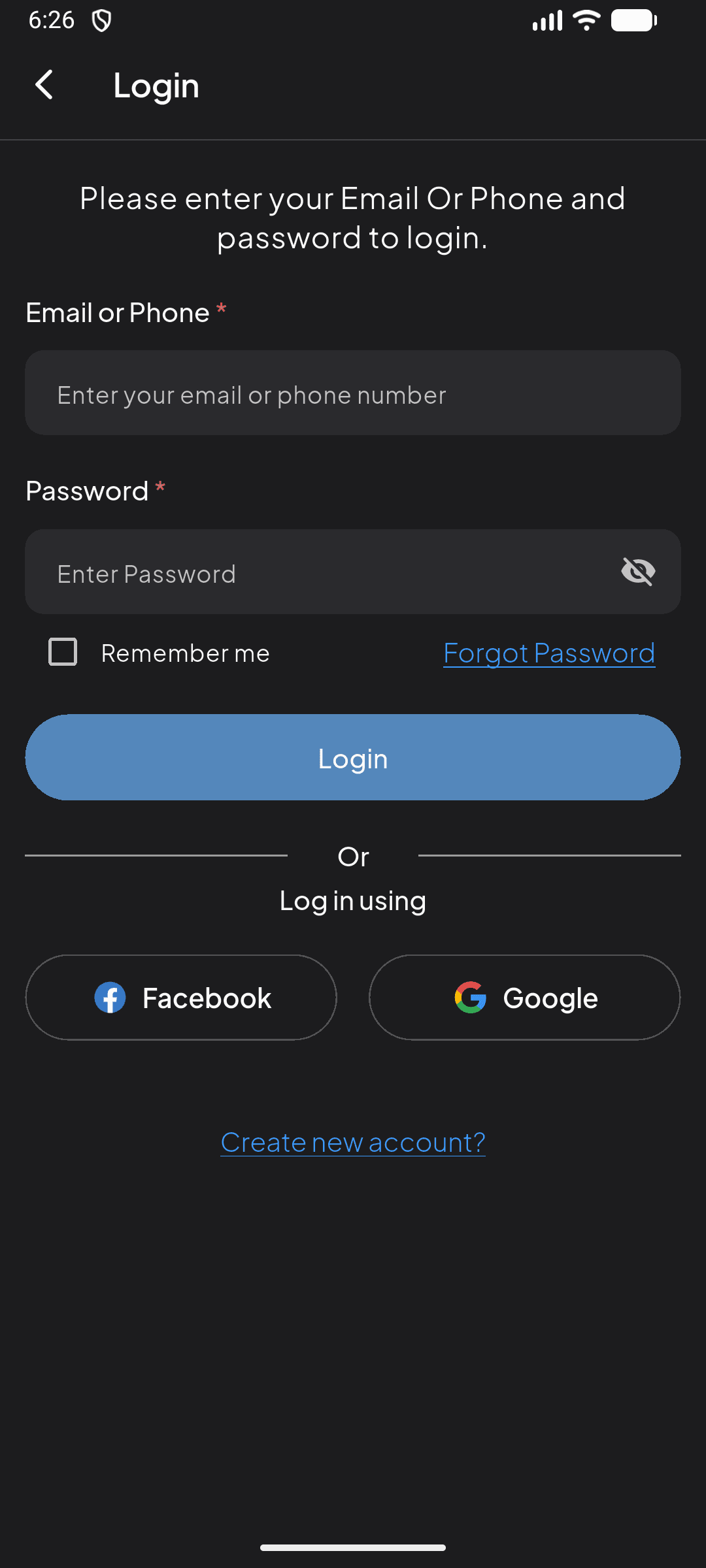
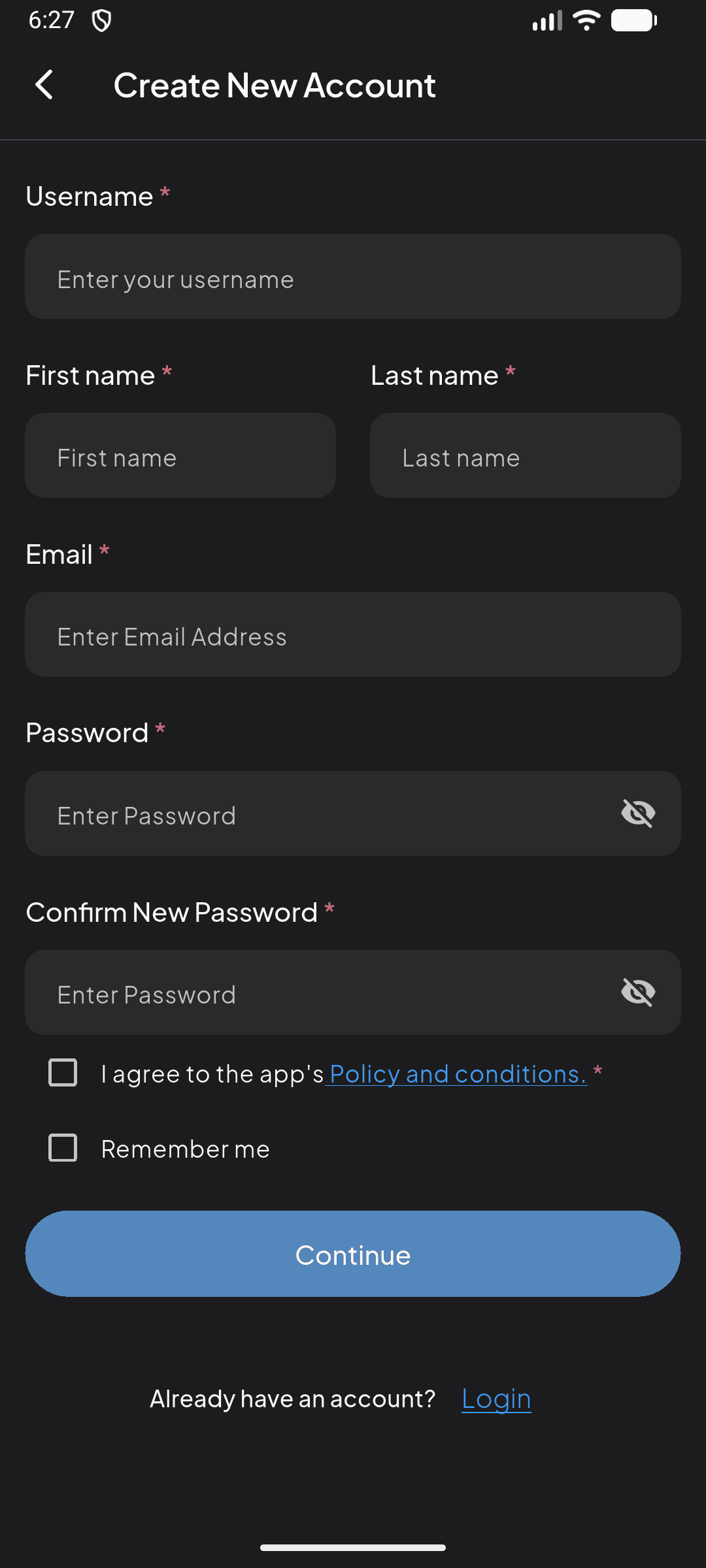
To access personalized features, you need to create an account or log in. The app supports email/phone login, social login (Facebook & Google), and a complete registration flow.
Login
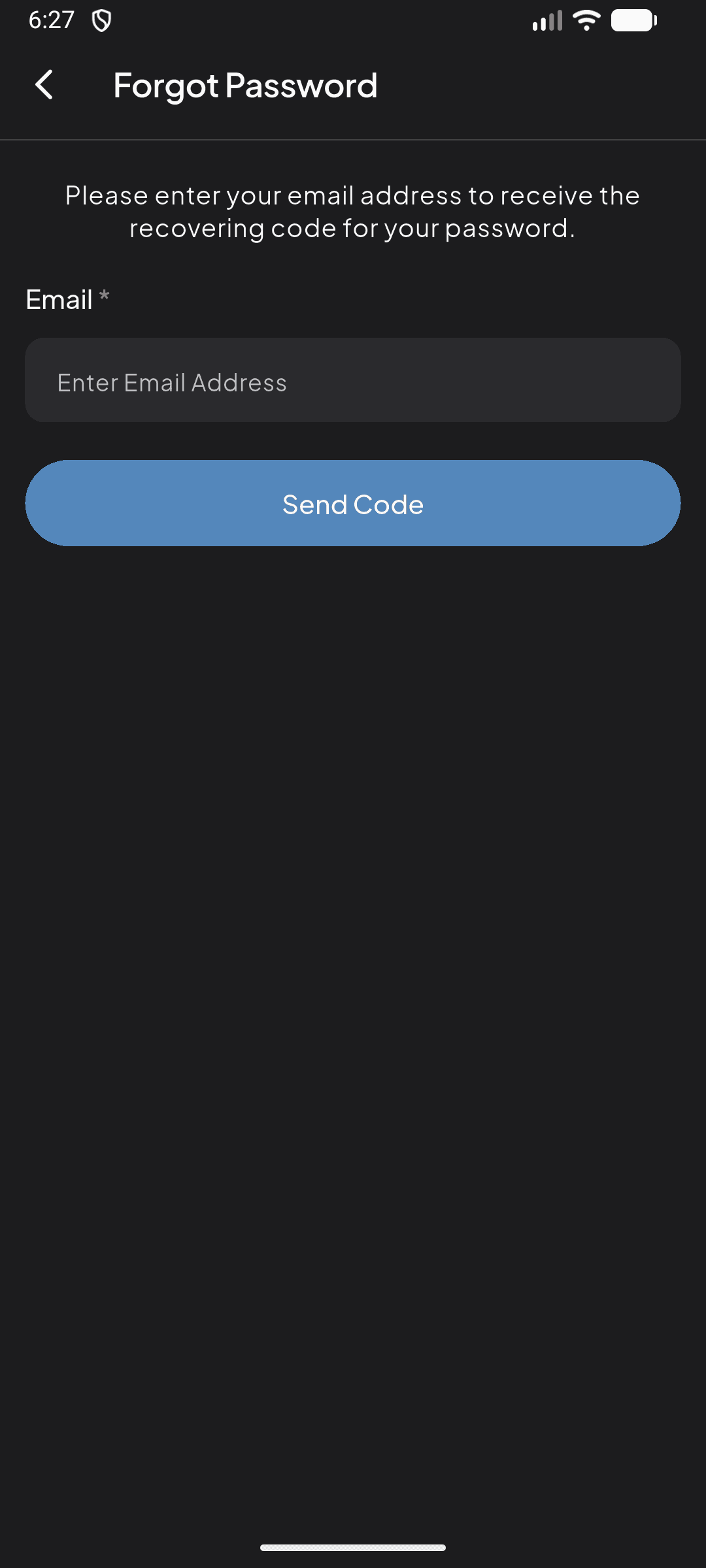
Access the login screen from the Account tab or by tapping the "Login" button on the guest account page. Enter your email or phone number and password to sign in.
OTP Verification
Home Screen
The home screen is the central hub of the app, showing your organization's property listings, referral banners, and quick access to all features. The layout adapts based on your role.
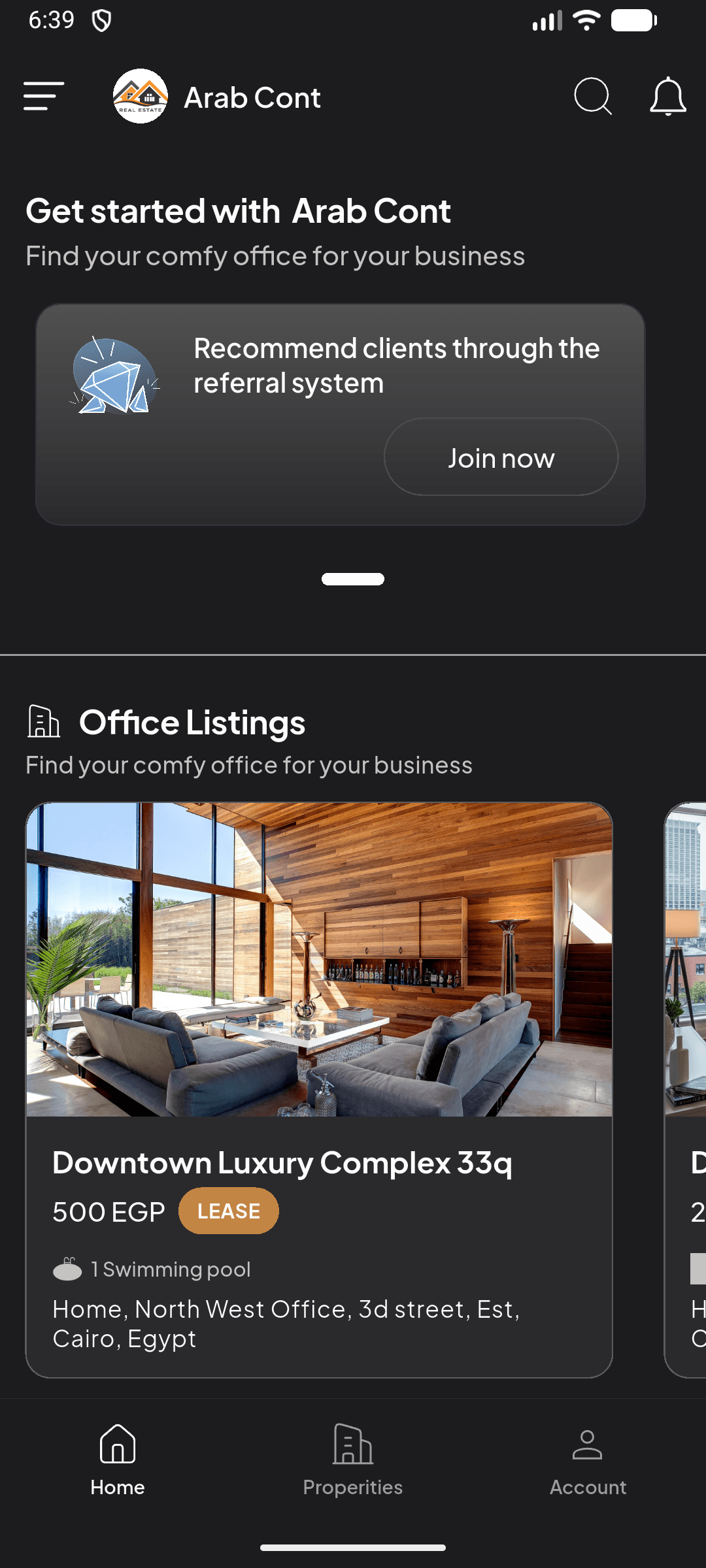
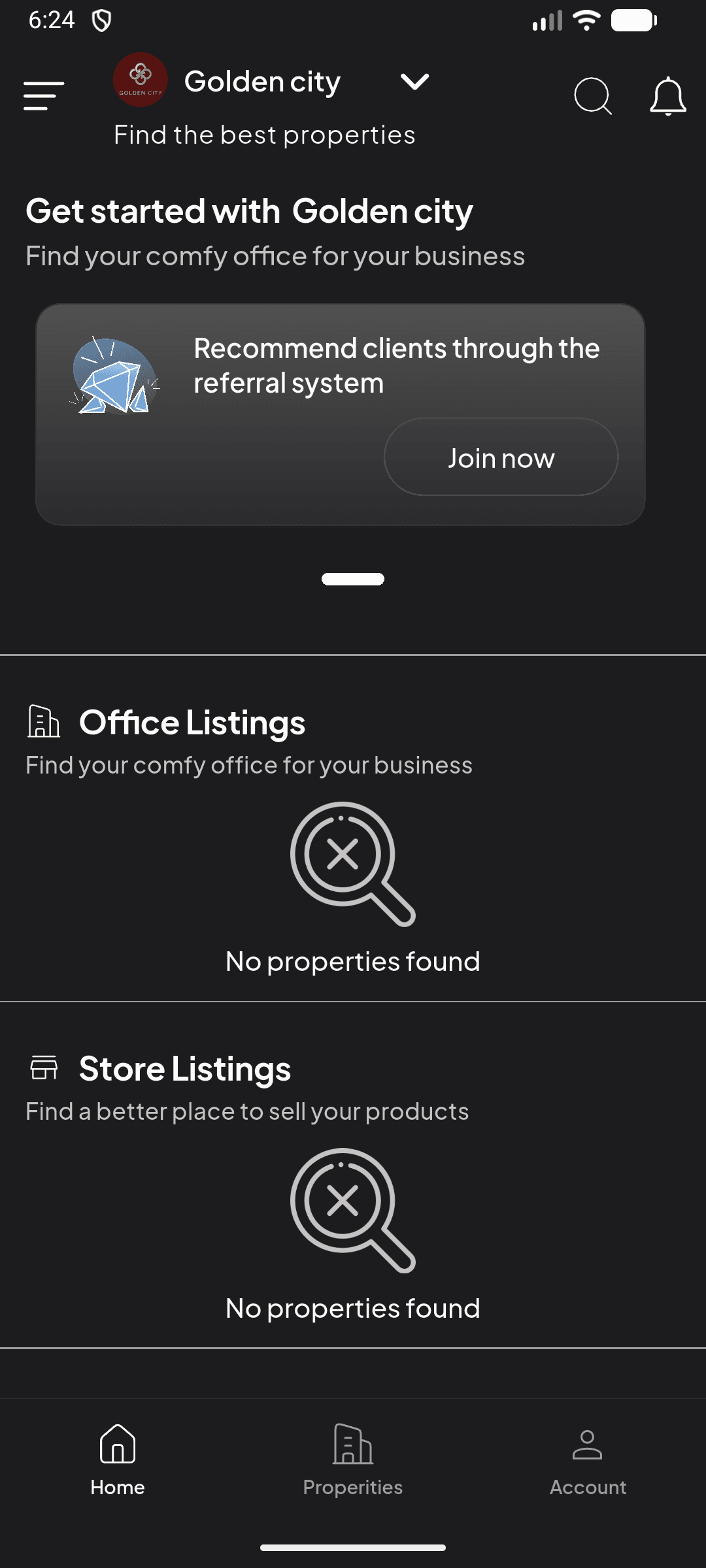
- Organization Header: Shows current development name with a dropdown to switch between organizations.
- Search & Notifications: Quick access icons in the top bar for property search and notification center.
- Referral Banner: Recommend clients through the referral system and earn rewards.
- Property Categories: Office Listings, Store Listings, and Residential Listings with horizontal scrollable cards.
Role Differences
Properties
The Properties section is accessible to all users and provides a comprehensive view of available real estate listings. Properties are categorized by type: Office, Store, and Residential. Access it from the Properties tab in the bottom navigation bar.
Property Listings
Each property card shows the property image, name, price, lease type badge (LEASE or SALE), amenities count, and location. Tap "See All Listings" to browse all properties in a category.
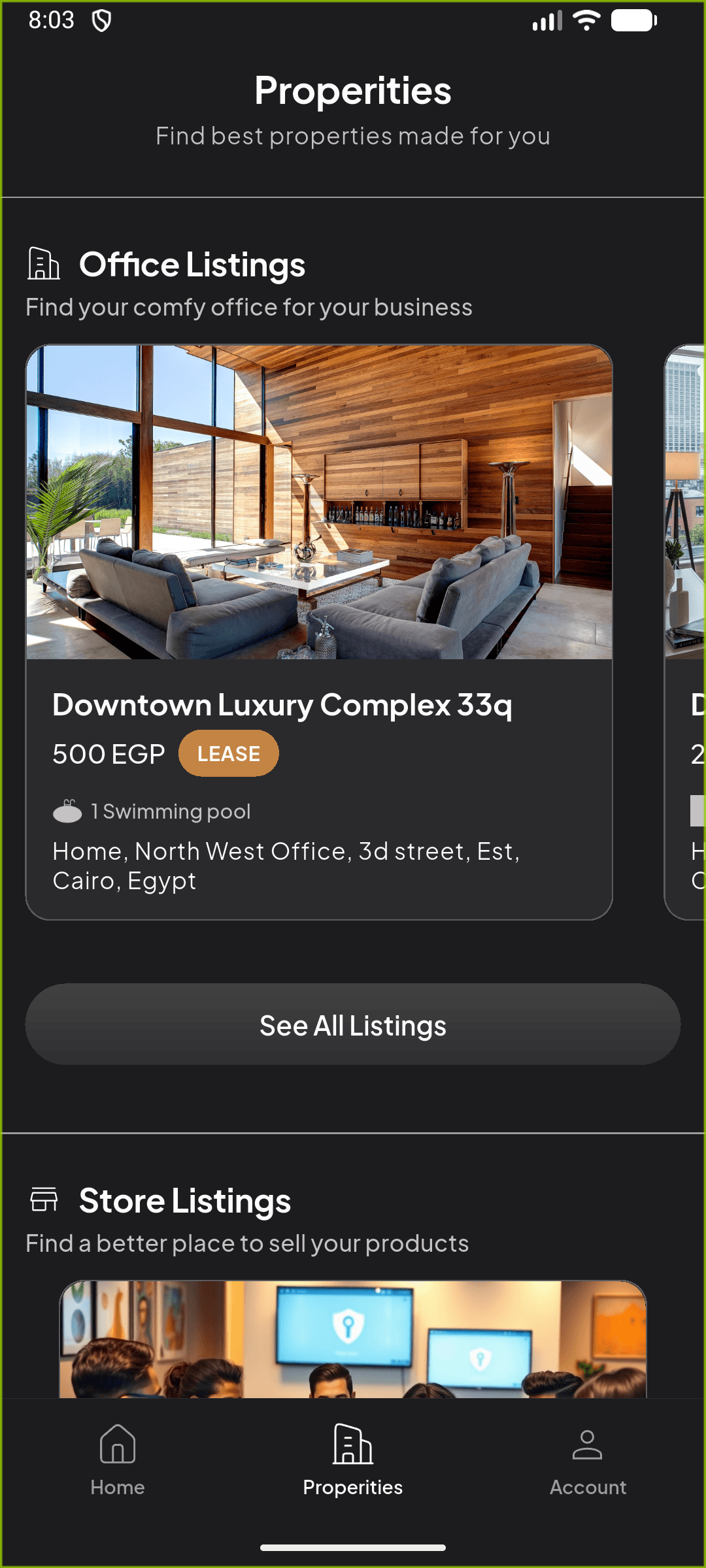
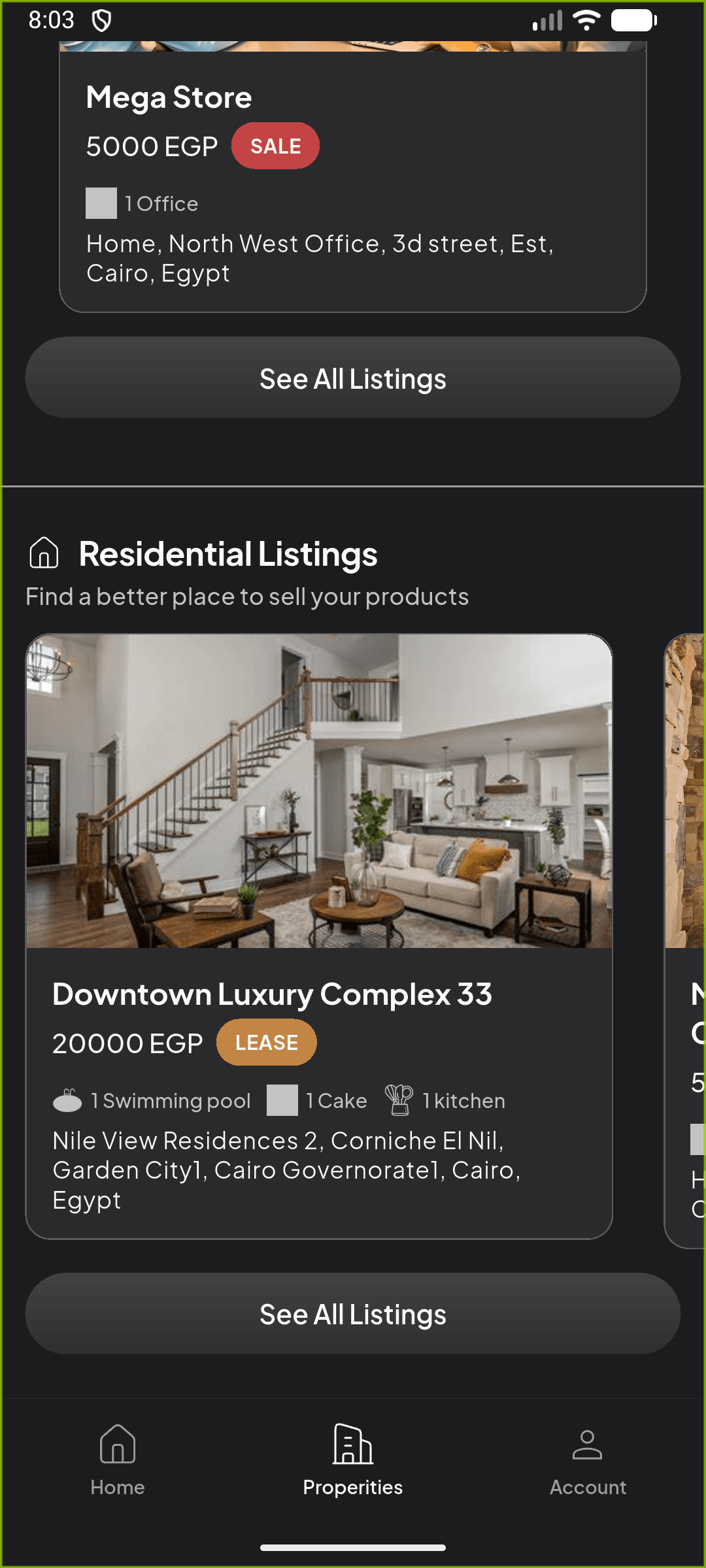
- Office Listings: Commercial office spaces for your business needs.
- Store Listings: Retail and commercial store spaces for selling products.
- Residential Listings: Apartments, villas, and residential units with amenities like pools, kitchens, and more.
Property Details
Tapping a property card opens the detailed view with a rich set of information and interactive features:
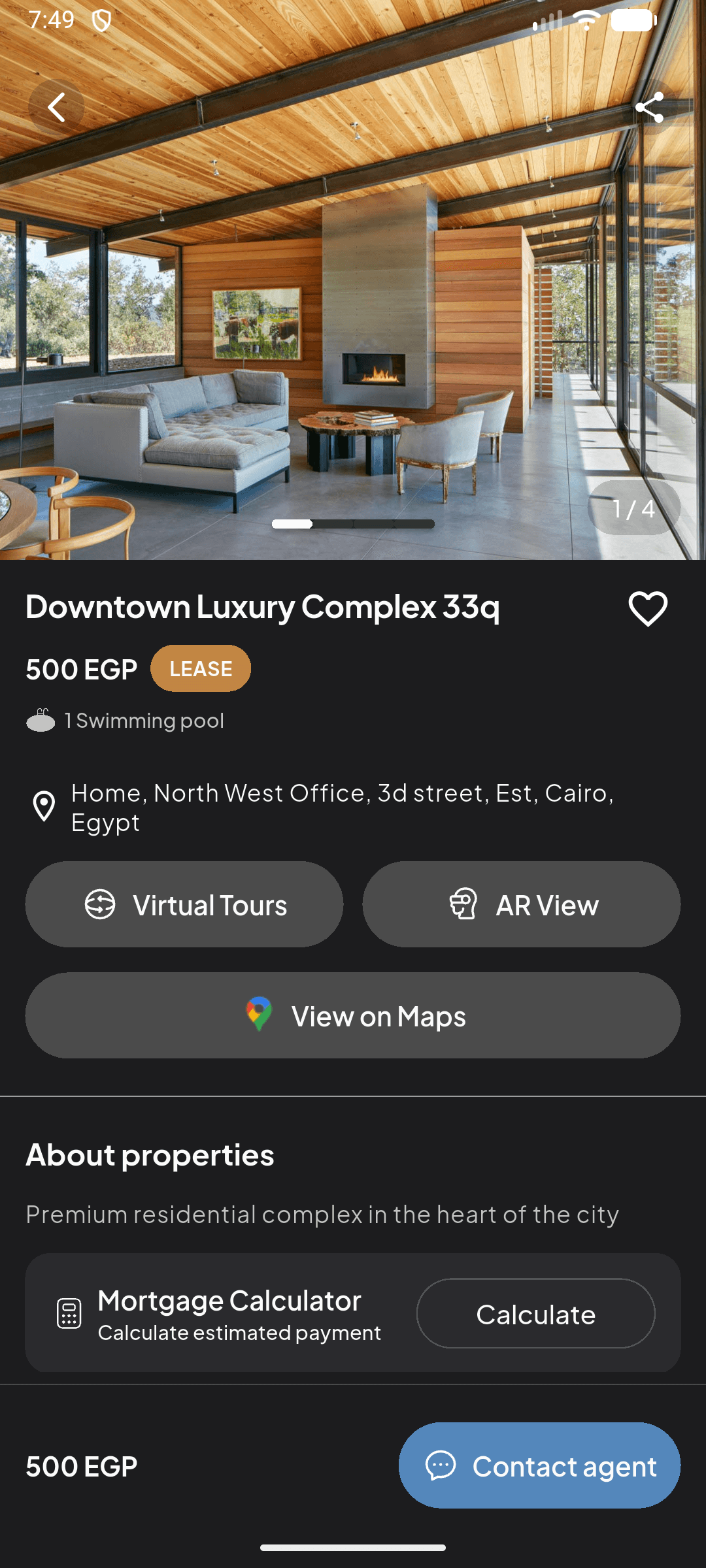
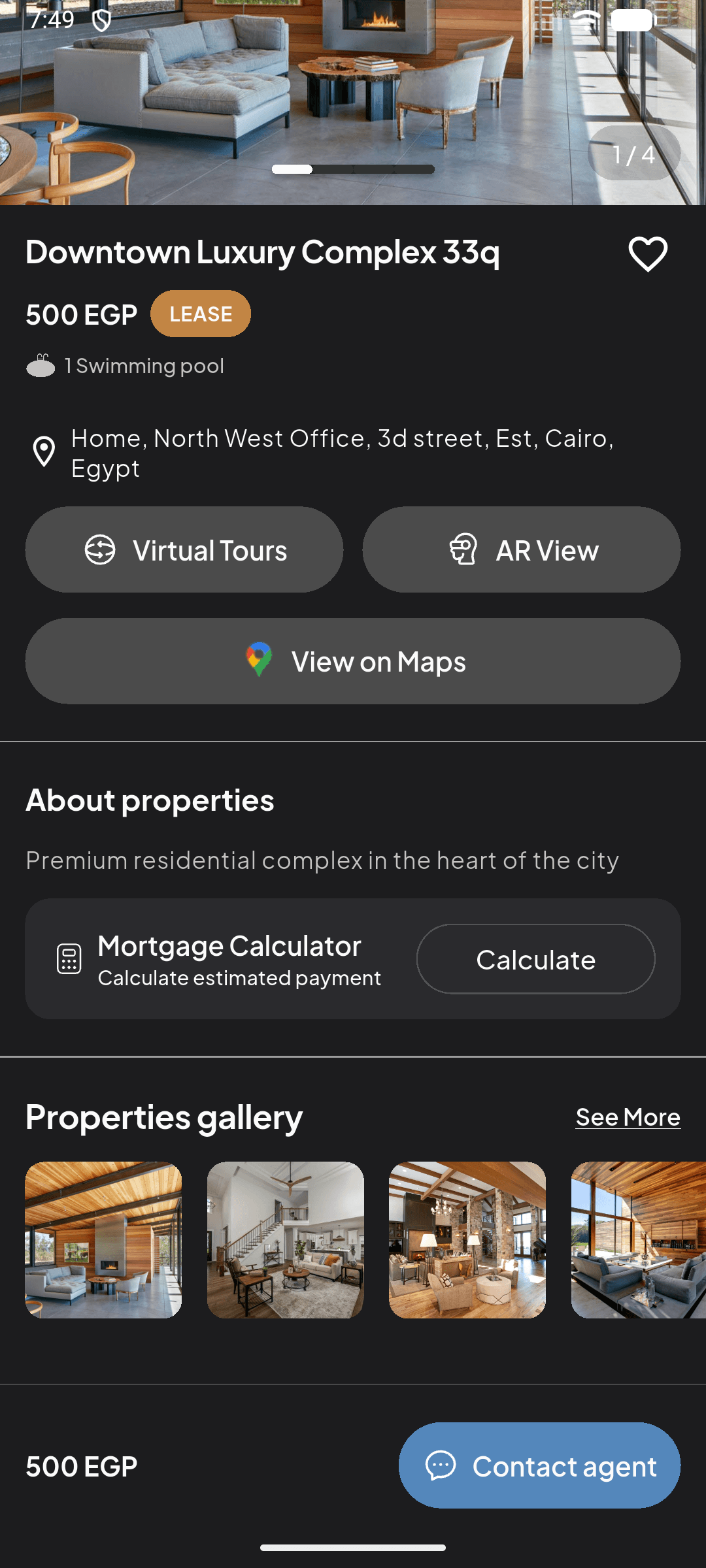
Swipe through multiple property photos with a page indicator (e.g., 1/4). High-resolution images showcase every angle of the property.
Tap Virtual Tours for an immersive 360° walkthrough or AR View to visualize the property in augmented reality using your device's camera.
Tap View on Maps to see the property location on Google Maps with the full address, street name, city, and country details.
Tap Calculate to estimate monthly payments based on property price, down payment percentage, and interest rate. Great for financial planning.
Favorites
Request Management
Property owners can submit and track service requests and permits through the Request Management system. Access it from the navigation drawer under "My Reservations" or via the Request Management tab in the bottom navigation bar (owner accounts only).
Owner Only
Three-Tab Navigation
The Request Management screen uses a pill-shaped tab bar with three views:
Community
The Community feature connects property owners within the same development. Share news, chat with neighbors, and stay informed about community events and updates. Access it from the Community tab in the bottom navigation bar (owner accounts only).
Owner Only
Two-Tab Layout
The Community screen uses a rounded tab bar with two sections:
Community Chat
Powered by Socket.IO for real-time communication with typing indicators and online status:
- Instant Messaging: Send text messages in real-time to other property owners.
- Multi-Image Sharing: Attach multiple photos from your camera or gallery to any message.
- Message History: All conversations are persisted and load more messages as you scroll up.
Owners Directory
Tap "Start conversation" in the Chat tab to open the Owners Directory. Search for residents by name, see how many users are in your development, and tap any owner to start or continue a direct conversation.
News Details
Tap any news article in the feed to read the full details, including high-resolution images, full descriptions, and related announcements from the management team.
My Account
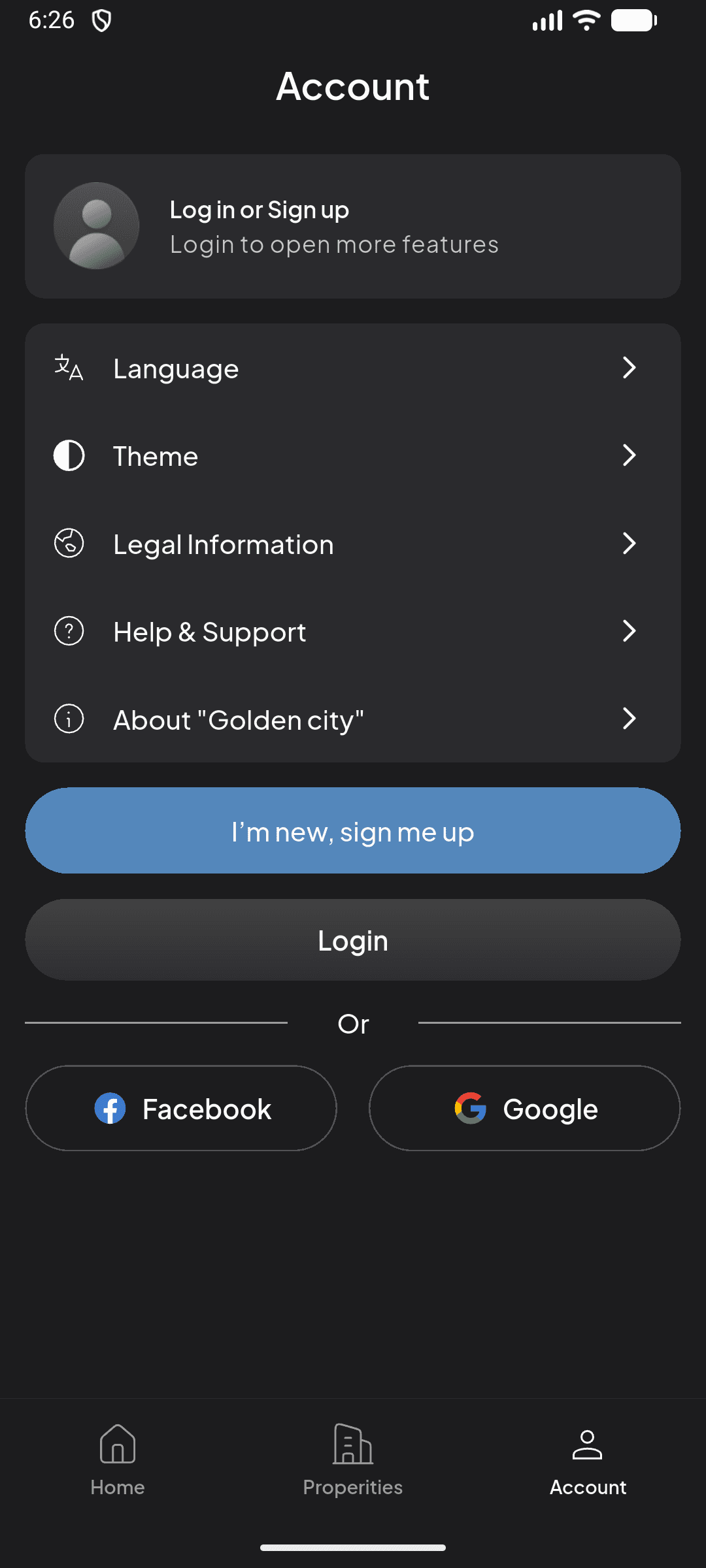
The Account section provides access to your profile, preferences, and app settings. The options available vary based on your authentication status.
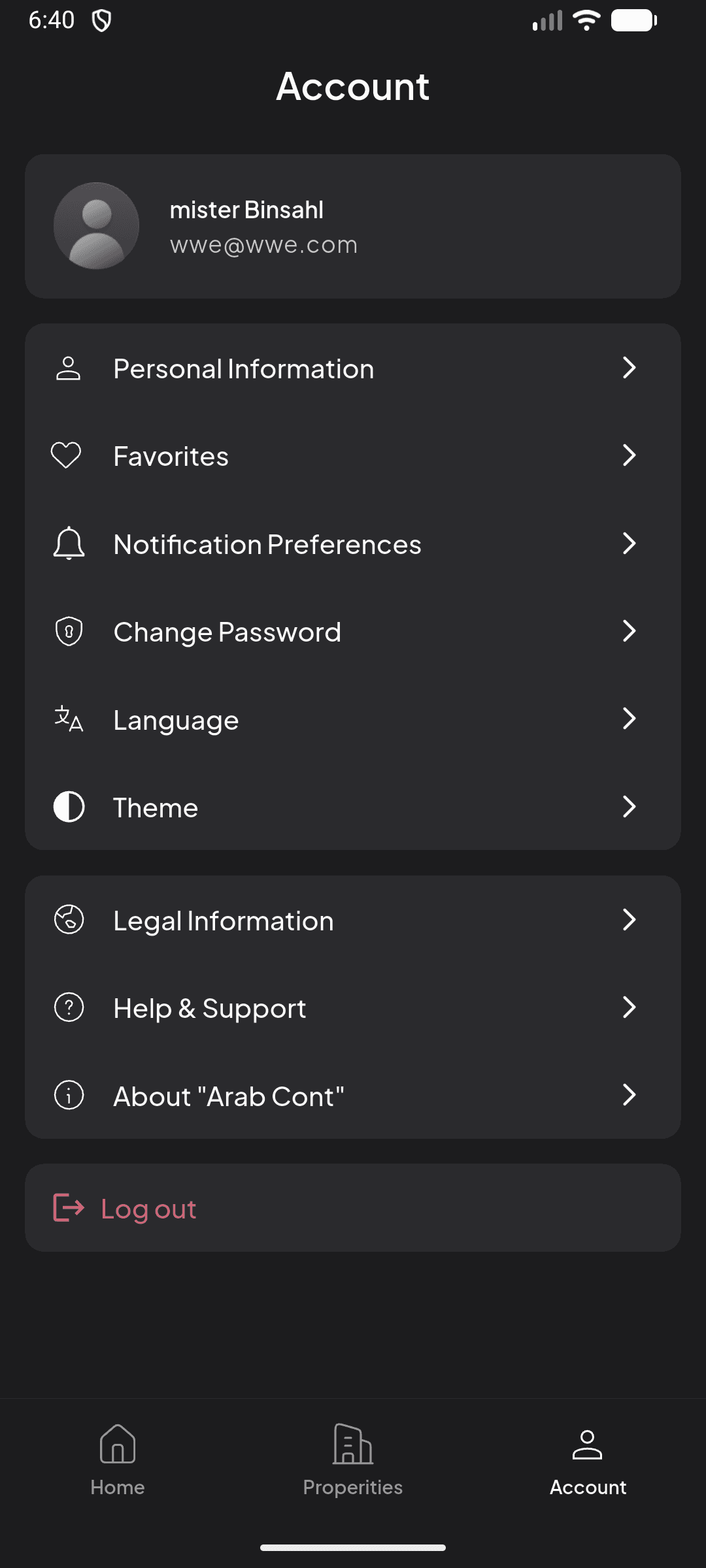
Logged-in Account Options
Personal Information
View and edit your profile details, name, email, and avatar.
Favorites
Access your saved/bookmarked properties list.
Notification Preferences
Configure push notification settings per category.
Change Password
Update your current password securely.
Language
Switch between English and Arabic (العربية).
Theme
Toggle between Light, Dark, and System theme modes.
Legal Information
Privacy policy, terms of service, and legal documents.
Help & Support
Access FAQ, support resources, and contact information.
About Organization
Information about your current property development.
Log Out
Sign out of your account securely.
Guest Account
Discover & Offers
The Discover section showcases exclusive offers, promotions, and deals from your property development and partner businesses. Access it from the navigation drawer by tapping "Discover".
Owner Only
Discover Home
The Discover screen features a search bar, a banner carousel at the top, category icons for quick filtering, and a "Best offers" section below.
Categories
Tap any category to view offers filtered by that type.
Feedback
Rate and review the facilities and services provided by your property development. Your feedback helps the management team improve the community experience. Access it from the navigation drawer under "Feedback for Facilities".
Owner Only
Two-Tab Layout
The Feedback screen uses a rounded tab bar with two sections:
Phone Directory
Quick access to important contact numbers for your property development, including management office, emergency services, maintenance hotline, and vendor contacts. Access it from the navigation drawer under "Phone Directory".
Owner Only
Three-Tab Layout
Contacts are organized into three tabs using a rounded pill container:
- Direct Calling: Tap any contact number to directly initiate a phone call.
- Favorite Contacts: Toggle the favorite icon to bookmark frequently used contacts for quick access.
- Search: Search through contacts by name or department. Results update as you type.
- Pull to Refresh & Pagination: Swipe down to refresh the list. Scroll to the bottom to load more contacts automatically.
Chat Support
Get direct assistance from the property management support team through real-time chat. Chat Support is accessible from the navigation drawer under "Chat Support" for all logged-in users. You can also start a chat about a specific property from the property detail page by tapping "Contact agent".
- Real-time Messaging: Instant communication with support agents powered by Socket.IO. Messages are delivered and displayed in real-time.
- Typing Indicators: See when a support agent is typing a response so you know help is on the way.
- Message History: All conversations are saved and accessible when you return to the chat. Timestamps are shown for each message.
- File Sharing: Send images and documents to support via the attachment button. Choose from camera or gallery. Tap any image to view it fullscreen.
Notifications
Stay informed with push notifications and in-app alerts for service updates, community news, payment reminders, and more.
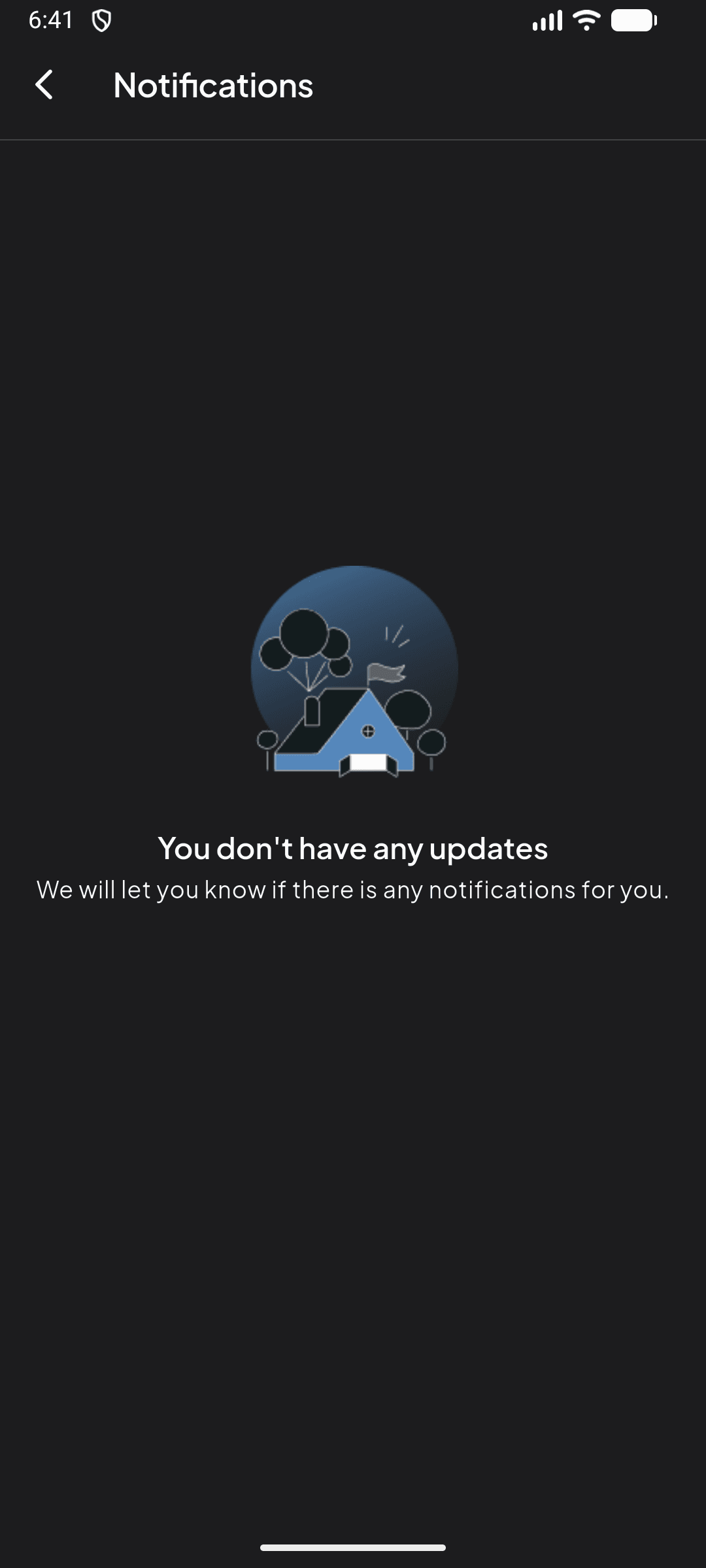
- Request status updates (approved, completed, rejected)
- Community news and announcements
- New chat messages from support or community
- Payment and billing reminders
- New offers and promotions
Notification Preferences
Utilities Management
Monitor and manage your property's utility consumption including water, electricity, gas, and other services. Track usage over time with visual charts and data.
Owner Only
Utility Cards
The main screen displays a list of utility cards, each showing:
- Utility Type: Icon and name (e.g., Electricity, Water, Gas)
- Unit: Your property unit name (e.g., "Levana Plateaus V106")
- Amount: Current billing amount (e.g., "EGP 4,370")
- Meter Serial & Last Reading: Meter identification and most recent reading value
Utility Details
Tap "Show details" on any utility card to view the two-tab detail screen:
Payment Methods
Manage your payment methods and digital wallet for property-related payments, service fees, and subscriptions.
Owner Only
Saved Cards
View and manage your saved credit/debit cards. Cards are stored securely for quick payments on services and subscriptions.
Digital Wallet
Your digital wallet shows your current balance prominently with a wallet graphic. Below, you can see your recent transaction history.
- Wallet Balance: Displayed at the top with the amount in EGP and a wallet illustration.
- Charge Wallet: Tap to add funds. Enter an amount (minimum 100 EGP) and choose a payment method from your saved cards.
- Recent Transactions: List of wallet activity showing icons, titles, dates, and amounts in green (credits) or red (debits).
Navigation & Settings
The app provides intuitive navigation through the bottom tab bar, navigation drawer, and various quick-access points throughout the interface. The navigation adapts based on your role.
Bottom Navigation
The bottom tab bar adapts based on your role:
Home
Properties
Requests
Community
Account
Home
Properties
Account
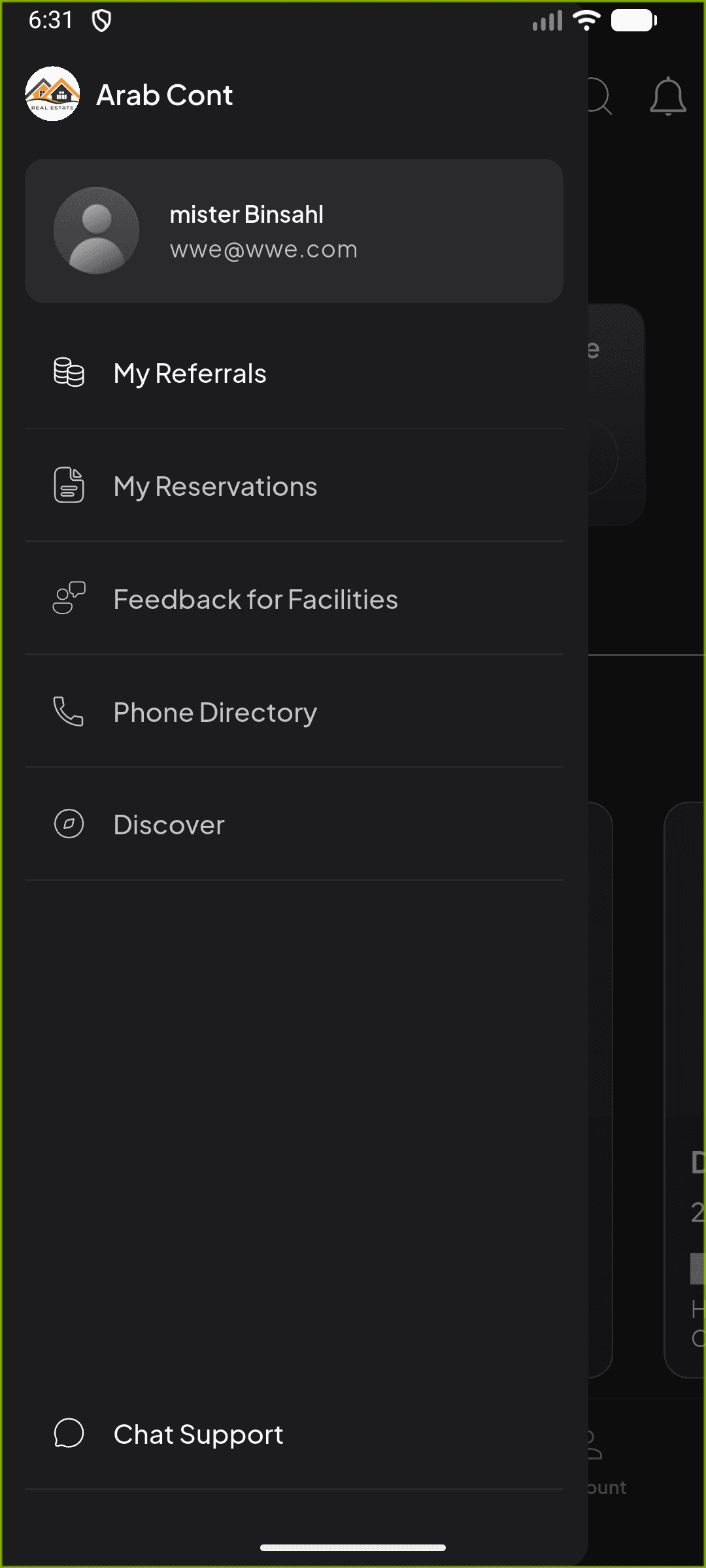
Owner Navigation Drawer
Tap the hamburger menu icon (☰) in the top-left corner of the Home screen to open the navigation drawer. Owner accounts see all of the following items:
- Profile Header — Name, email, and avatar
- My Referrals — Referral program and earnings
- My Reservations — Service and permit requests (Ch. 5)
- Feedback for Facilities — Rate services (Ch. 9)
- Phone Directory — Important contacts (Ch. 10)
- Discover — Offers and deals (Ch. 8)
- Chat Support — Direct support messaging (Ch. 11)
App Settings
Accessible from the Account tab for all roles:
Bilingual Support
Full English and Arabic support with RTL layout. Switch languages instantly from Account settings. Uses Cairo font for Arabic and PlusJakartaSans for English.
Theme Modes
Choose between Light, Dark, or System-default theme. Dark mode is the default. Theme preference is persisted across sessions.
Push Notifications
Firebase Cloud Messaging for 6 notification channels: messages, requests, auctions, community, discover, and new properties.
Switch Development
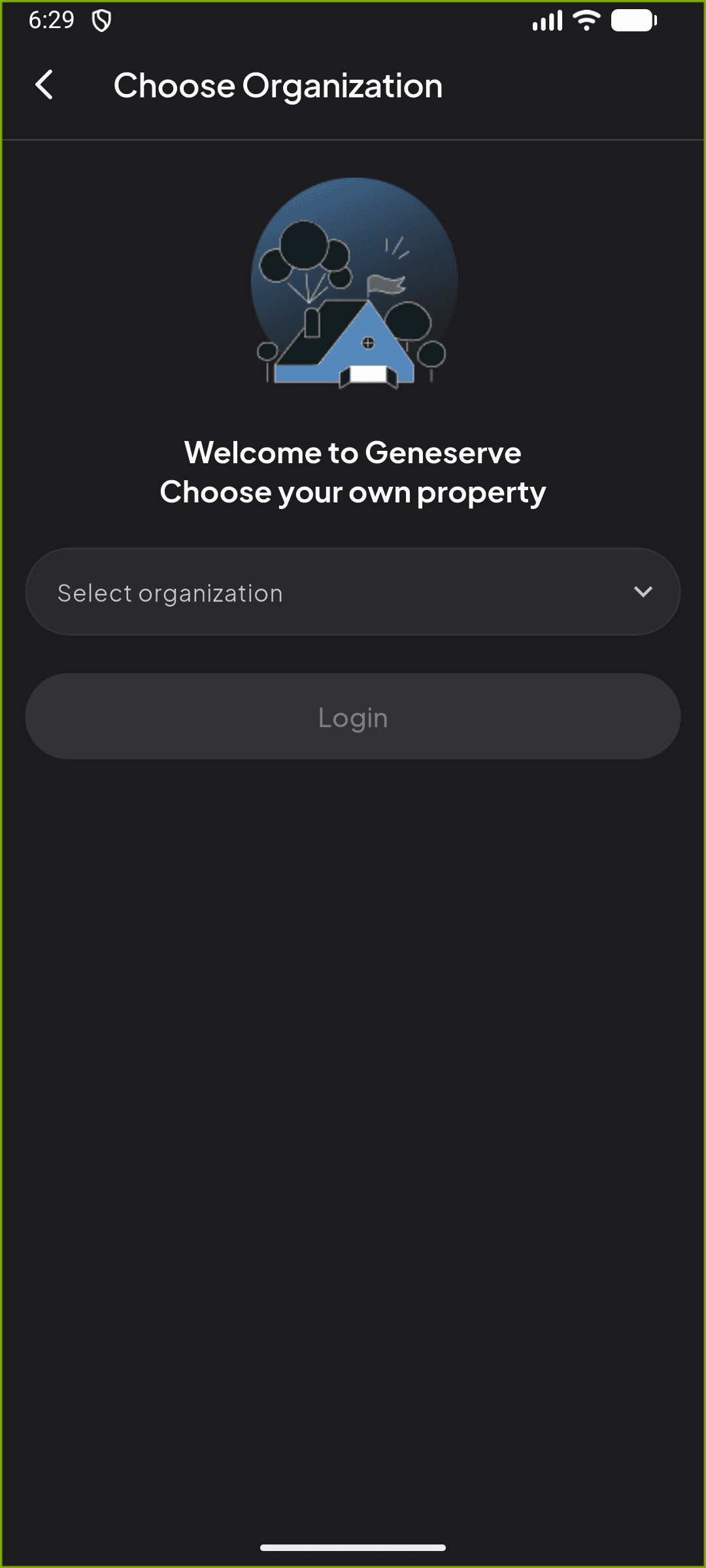
Tap the organization name dropdown at the top of the Home screen to switch between real estate developments seamlessly.
Quick Tip